
Free Image Compressor 2026 — No Upload, 100% Private
Use our free image compressor to reduce image file sizes by up to 80% without visible quality loss in 2026. Supports JPG, PNG, and WebP. All compression happens entirely in your browser — your images are never uploaded to any server. 100% private. No sign-up required.
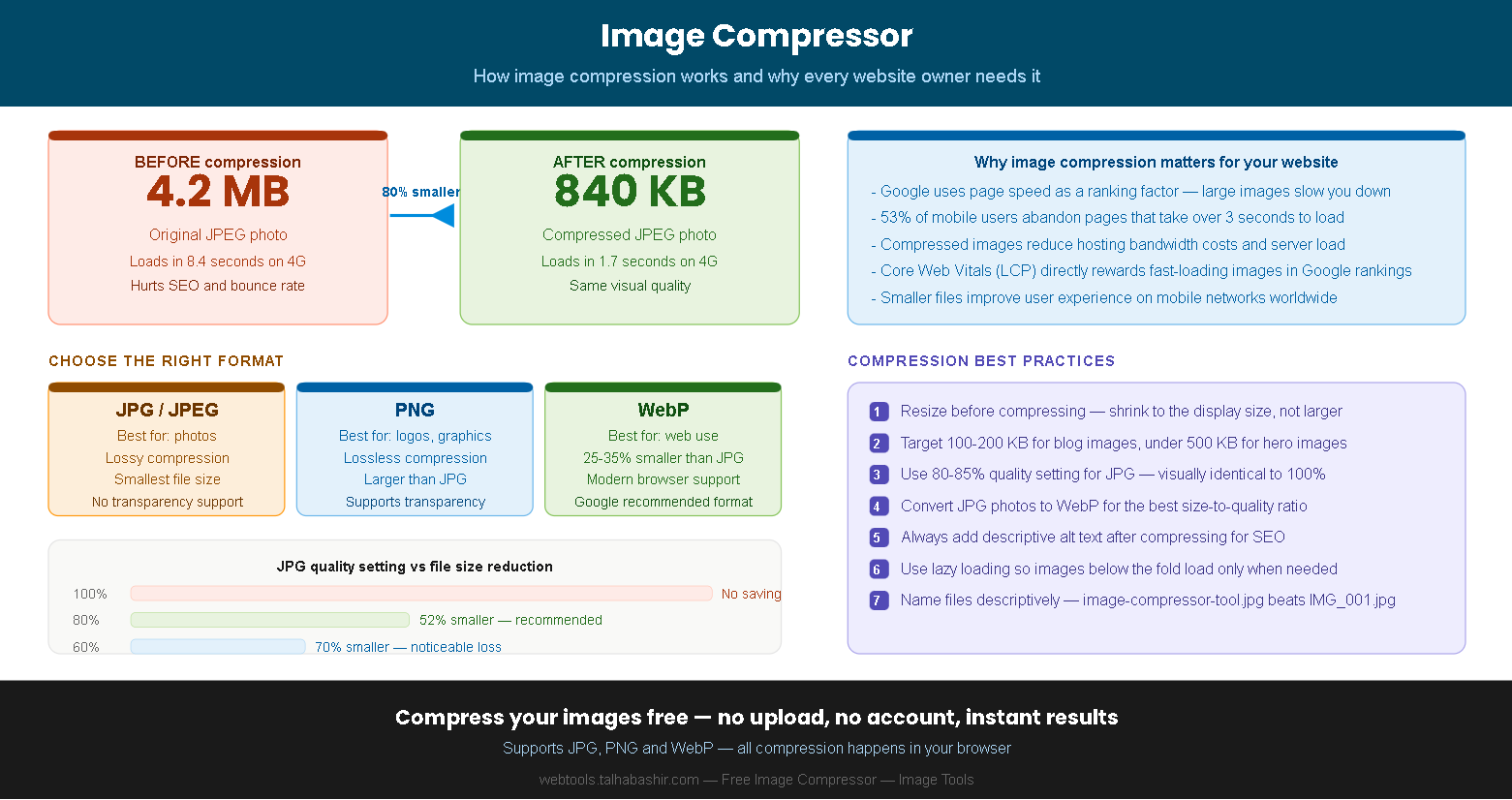
How to use this free image compressor — no upload required
Compressing your images takes less than 30 seconds. Our free image compressor processes everything directly in your browser using the Canvas API — your images are never sent to any server, which means 100% privacy and instant results.
Drop your images onto the tool or click Select Images to choose JPG, PNG, or WebP files.
Adjust the quality slider — 80% is recommended for the best balance of quality and size.
Click Compress Images and see the before/after file sizes instantly for each image.
Click Download on each image or Download All to save every compressed file at once.
Why image compression matters for your website in 2026
Images are typically the largest files on any webpage — often accounting for 60–80% of total page weight. Uncompressed images slow down your website, hurt your Google rankings, and cause visitors to leave before your page even finishes loading. Our image compressor solves this by reducing file sizes by up to 80% with no visible quality loss.
Google's Core Web Vitals — specifically the Largest Contentful Paint (LCP) metric — directly measures how fast your largest image loads. A slow LCP score hurts your search rankings. Furthermore, research by Google consistently shows that 53% of mobile users abandon pages that take more than 3 seconds to load. Compressing every image before uploading it to your website is therefore one of the highest-impact SEO improvements you can make.
How much can you save?
- A typical smartphone photo (4–8 MB) can be compressed to under 500 KB with no visible quality change — a saving of over 90%.
- A blog feature image (1–2 MB) can typically be reduced to 80–150 KB at 80% quality — a saving of 85–92%.
- A product photo for an e-commerce site (500 KB–1 MB) can be reduced to 50–100 KB — making your store pages significantly faster.
80% quality is the sweet spot for web images. At this setting, the human eye cannot distinguish the compressed image from the original — but the file size is typically 50–80% smaller.
JPG, PNG, and WebP — which format should you use in 2026?
Choosing the right image format before compressing can make an even bigger difference than the compression setting itself. Our image compressor supports the three most widely used web image formats, each with different strengths.
JPG / JPEG
The most widely used format for photos and general web images. JPG uses lossy compression, meaning it permanently discards image data that the human eye typically cannot detect. It produces the smallest file sizes for photographic content. JPG does not support transparency. Use JPG for blog images, hero images, and product photos.
PNG
PNG uses lossless compression, meaning no image data is discarded — which makes files larger than JPG but preserves every pixel perfectly. PNG supports full transparency, which makes it the correct choice for logos, icons, and graphics with transparent backgrounds. Use PNG when you need sharp edges and transparency support.
WebP
WebP was developed by Google specifically for the web and offers 25–35% better compression than JPG at the same visual quality. It supports both lossy and lossless compression, and it supports transparency like PNG. All modern browsers support WebP. Additionally, Google PageSpeed Insights recommends serving images in WebP format for better Core Web Vitals scores.
Never compress an image that has already been compressed and re-save it as JPG. Each generation of JPG compression adds more quality loss. Always start from the original high-quality file when using an image compressor.
Learn more about image optimization:
Google Developers — Optimize images for the web Web.dev — Image optimization best practices